Whiteboard Sections
The whiteboard is where the magic happens! It's a canvas that you add all the elements of your video to.
The whiteboard contains lots of different controls, so it's important to understand what the different sections of the whiteboard are, and when you should use them.
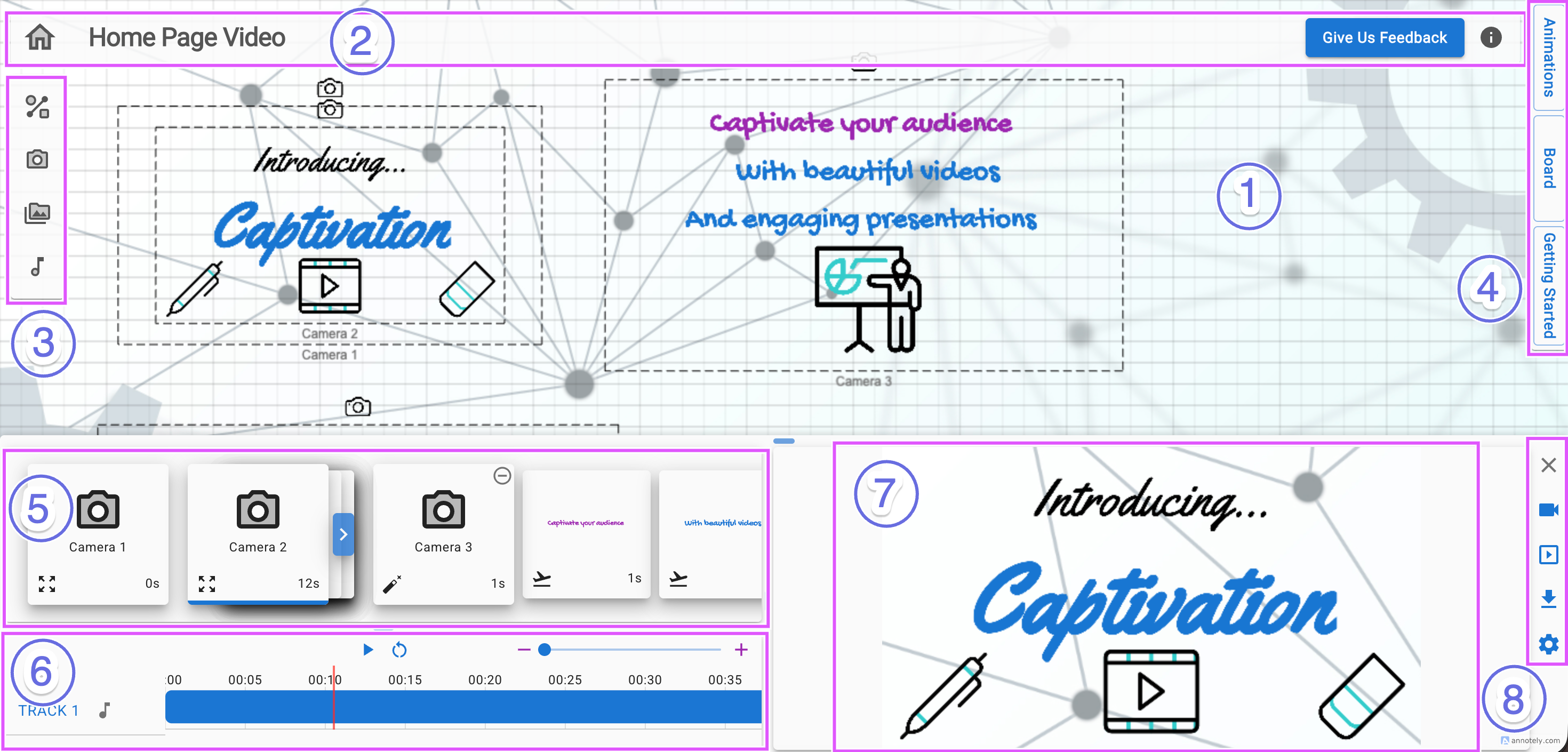
- The Whiteboard Canvas (or just the Whiteboard). This is the area where you add all your text, images, shapes and everything else that makes up your video. You can zoom, pan, drag items, resize items, copy, paste and all the other normal operations you would expect on a canvas.
- The Menu Bar. This has simple controls for changing the whiteboard name (double click on the name and change the text), as well as options to give us feedback (please do! It helps us to improve things for you), and some general help on the whiteboard.
- The Controls Bar. This menu is how you add new things to your whiteboard. There are controls to add shapes, cameras, your own images, library images, audio and much more.
- The Sidebar. The sidebar has many bits of additional functionality, but the part your most likely to use is the Animation sidebar. When an item on the whiteboard is selected, this let's you add an animation to it. These animations are the building blocks of your video.
- The Animation Timeline. The Animation Timeline shows all your animations in the order they appear in the video. You can alter and reorder animations from here. This is the control centre of your video!
- The Audio Timeline. Any audio tracks that will be heard during the video appear here. Reorder tracks, trim them and control audio levels by interacting with the Audio Timeline.
- The Previewer. This is a preview of your video. It updates live every time you make a change to the whiteboard, an animation, or any other setting that would affect your video. You can play, pause and seek. Just beware that this is a preview of your video, not the final cut. So it might be slightly lower quality than the real thing.
- The Timeline Controls. Ready to export your video or view it as a presentation? Do it here. You can also download your whiteboard as an image and control how the Timeline is displayed.